

Product Image SEO: Alt Text, File Names & More
Boost your product image SEO with proven alt text, file naming, compression, and structured data techniques for Shopify, WooCommerce, and Amazon stores.
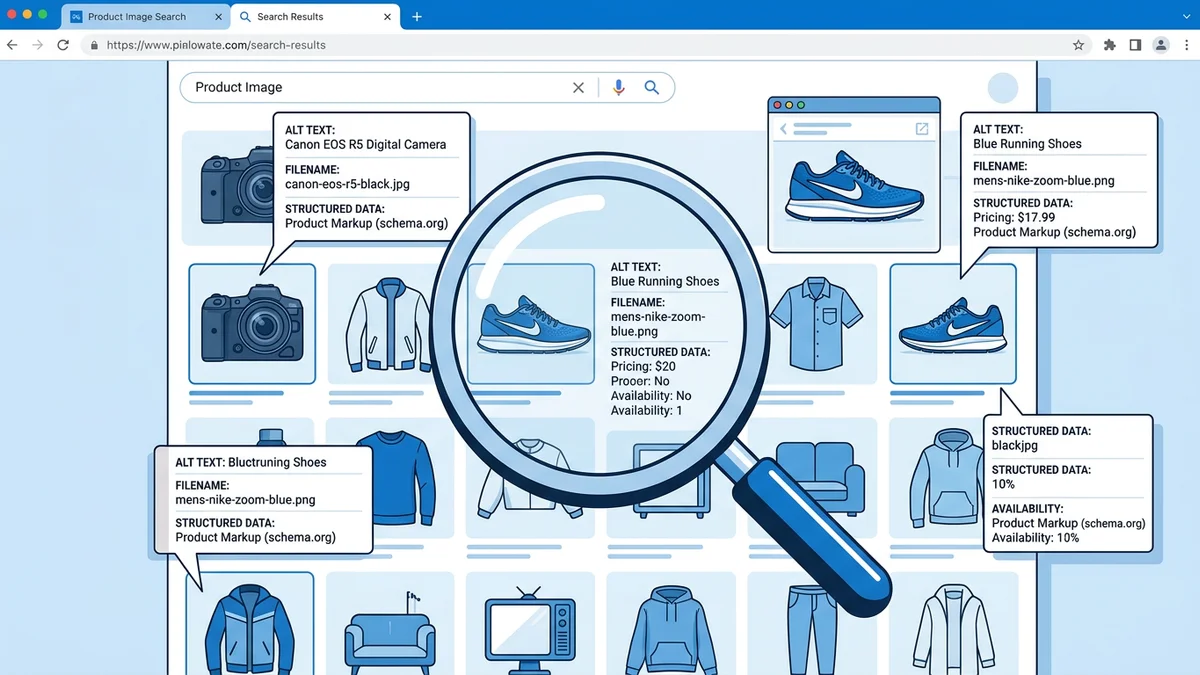
TL;DR
Product image SEO is a combination of technical and descriptive optimizations that help your images rank in Google Image Search and improve your product page performance. The essentials: write descriptive alt text with natural keywords, use keyword-rich file names separated by hyphens, compress images to WebP at 80-85 quality, implement lazy loading and responsive srcset, add product structured data with image properties, and submit an image sitemap. These changes directly impact Core Web Vitals, click-through rates, and organic traffic.
Key Takeaways
- Alt text should describe the product specifically (color, material, use case) — not stuff keywords or use "image of"
- File names like
red-leather-wallet-front-view.webpoutperformIMG_4392.jpgin every ranking signal - WebP reduces file size by 25-35% over JPEG at equivalent quality — use it as your default format with JPEG fallback
- Lazy loading below-the-fold images and properly sized srcset attributes directly improve Largest Contentful Paint (LCP)
- Product structured data (schema.org) with image properties helps Google connect your images to rich results
- Image sitemaps surface images that Google might miss during normal crawling — especially for JS-rendered galleries
Why Product Image SEO Matters
Google Image Search drives 22% of all web searches. For e-commerce, that number is higher — shoppers actively use image search to find products, compare designs, and discover brands they have never heard of.
Yet most sellers upload product photos with default camera file names, skip alt text entirely, and serve uncompressed 5MB JPEGs that tank their page speed. Every one of those is a missed ranking signal.
Product image SEO sits at the intersection of three things: helping search engines understand what your images show, helping your pages load fast, and helping your images appear in Google Image Search, Google Shopping, Google Lens, and Pinterest visual search.
The good news is that most of your competitors are not doing this. Image SEO is one of the few areas in e-commerce where basic optimization still yields outsized results.
Alt Text Best Practices for Product Images
Alt text (the alt attribute on <img> tags) is the single most important image SEO element. It tells search engines and screen readers what the image shows.
What Good Product Alt Text Looks Like
Good alt text is specific, descriptive, and natural:
- Good:
Handmade ceramic coffee mug in sage green, 12oz, on a wooden breakfast table - Good:
Nike Air Max 90 running shoe in white and university red, side profile view - Good:
Organic lavender body lotion bottle, 250ml, with pump dispenser
What Bad Alt Text Looks Like
- Bad:
imageorphotoorproduct image - Bad:
buy best coffee mug cheap discount free shipping coffee mug online - Bad:
IMG_4392.jpg - Bad: Left blank (empty alt attribute)
Alt Text Rules
- Describe the product specifically. Include the product name, color, material, size, and angle or view when relevant.
- Keep it under 125 characters. Screen readers truncate beyond this, and search engines give diminishing weight to very long alt text.
- Include one natural keyword. If the page targets "ceramic coffee mug," include that phrase naturally — do not force it.
- Skip "image of" and "photo of." Search engines already know it is an image. Starting with those phrases wastes characters.
- Write unique alt text for each image. If you have 5 product images, each should describe what that specific image shows (front view, side view, in-use, close-up detail, packaging).
- Use the alt attribute, not the title attribute. The
titleattribute shows a tooltip on hover and is not a ranking signal. Put your SEO effort intoalt.
Alt Text for Decorative Images
Not every image needs alt text. Decorative images (background patterns, spacers, purely visual dividers) should use an empty alt attribute: alt="". This tells screen readers to skip them. But product images are never decorative — they always need descriptive alt text.
File Naming Conventions
The image file name is a ranking signal. Google reads the file name to understand image content before it even processes the image pixels.
File Name Rules
- Use descriptive, keyword-rich names. Rename
IMG_4392.jpgtored-leather-bifold-wallet.webpbefore uploading. - Separate words with hyphens. Google treats hyphens as word separators. Underscores are treated as joiners (
red_walletreads as one word,red-walletreads as two). - Use lowercase only. Avoids duplicate URL issues on case-sensitive servers.
- Include the primary keyword. The file name should naturally contain the main keyword you want the image to rank for.
- Add a view descriptor when relevant. For multiple product images:
product-name-front.webp,product-name-side.webp,product-name-lifestyle.webp. - Keep it concise. 3-6 words is the sweet spot. Do not write a sentence.
File Name Examples
| Before | After |
|--------|-------|
| IMG_4392.jpg | handmade-ceramic-mug-sage-green.webp |
| product-1.png | organic-lavender-body-lotion-250ml.webp |
| screenshot 2026-03-10.jpg | nike-air-max-90-white-red-side.webp |
| FINAL_v3_edited(2).jpg | walnut-cutting-board-overhead.webp |
Automating File Names
If you manage hundreds of SKUs, rename images programmatically. Pull the product name from your catalog database, slugify it (lowercase, replace spaces with hyphens, strip special characters), and append the image type. Most e-commerce platforms have bulk image upload tools that handle this.
Image Compression Without Quality Loss
Uncompressed product images are the number one page speed killer for e-commerce sites. A single 5MB hero image can push your Largest Contentful Paint (LCP) past 4 seconds and tank your Core Web Vitals score.
Compression Strategy
The goal is to reduce file size while keeping the image visually indistinguishable from the original. Here is the approach:
- Start with the right format (WebP for most cases — see format comparison below).
- Use lossy compression at quality 80-85. This typically reduces file size by 60-80% with no visible quality loss on product images.
- Resize before compressing. Do not serve a 4000px image and rely on CSS to display it at 800px. Resize to the maximum display size first, then compress.
- Strip metadata. EXIF data (camera model, GPS coordinates, timestamps) adds 10-100KB per image. Strip it.
- Use a consistent pipeline. Tools like Sharp (Node.js), Squoosh, or ImageOptim give you reproducible results across your catalog.
Compression Quality Guide
| Quality Setting | Use Case | Typical Savings | |----------------|----------|----------------| | 95-100 | Never — imperceptible difference from 85 but 3-5x larger | 0-10% | | 85-90 | Hero images, zoom-enabled product detail shots | 50-65% | | 75-85 | Standard product thumbnails and gallery images | 65-80% | | 60-75 | Background images, decorative lifestyle shots | 80-90% | | Below 60 | Avoid for product images — artifacts become visible | 90%+ |
For product photography specifically, quality 80-85 is the sweet spot. At this level, compression artifacts are invisible at normal viewing distances, and you get substantial file size savings.
Tools for Compression
- Sharp — Node.js library, best for automated pipelines. Fast, reliable, supports WebP/AVIF output.
- Squoosh (squoosh.app) — Browser-based, great for one-off comparisons. Shows side-by-side quality before/after.
- ImageOptim (Mac) — Desktop app, drag-and-drop, strips metadata and optimizes losslessly.
- TinyPNG/TinyJPG — Web tool, free for up to 500 images/month.
WebP vs JPEG vs PNG for Product Images
Choosing the right image format directly impacts file size, quality, and browser compatibility.
Format Comparison
| Format | Best For | Compression | Transparency | Browser Support | Typical Size (1000px product) | |--------|----------|-------------|-------------|-----------------|------------------------------| | WebP | Default for all web product images | Lossy + lossless | Yes | 97%+ browsers | 80-150KB | | JPEG | Fallback for older browsers | Lossy only | No | 100% | 120-250KB | | PNG | Products with transparency, text overlays | Lossless only | Yes | 100% | 300-800KB | | AVIF | Future-ready, best compression | Lossy + lossless | Yes | ~92% browsers | 50-100KB |
Recommendation
Use WebP as your default format with JPEG as a fallback. WebP gives you 25-35% smaller files than JPEG at the same visual quality, supports transparency (so you can skip PNG for most cases), and has near-universal browser support in 2026.
Use PNG only when you need lossless quality with transparency — infographics with text overlays, logos on product images, or images with sharp edges where JPEG/WebP artifacts would be visible.
Consider AVIF for forward-looking optimization. AVIF offers 50% smaller files than WebP, but browser support is still catching up (~92% as of early 2026). If your platform supports it, serve AVIF with WebP and JPEG fallbacks via the <picture> element.
Implementing Format Fallbacks
<picture>
  <source srcset="product-image.avif" type="image/avif">
  <source srcset="product-image.webp" type="image/webp">
  <img src="product-image.jpg" alt="Blue ceramic vase, 30cm tall, on a shelf">
</picture>
The browser picks the first format it supports. This gives you the smallest file size for modern browsers while maintaining compatibility for older ones.
Responsive Images and srcset
Serving a single image size to all devices wastes bandwidth on mobile and looks blurry on high-DPI displays. Responsive images solve both problems.
How srcset Works
The srcset attribute tells the browser which image sizes are available, and the browser picks the best one based on the device's screen size and pixel density:
<img
  src="product-800.webp"
  srcset="product-400.webp 400w, product-800.webp 800w, product-1200.webp 1200w, product-1600.webp 1600w"
  sizes="(max-width: 600px) 100vw, (max-width: 1200px) 50vw, 33vw"
  alt="Stainless steel water bottle, 750ml, matte black finish"
  loading="lazy"
>
What This Does
- Mobile (600px screen): Loads the 400w image (~50KB) instead of the 1600w image (~200KB).
- Tablet (1024px screen): Loads the 800w image.
- Desktop (1920px screen): Loads the 1200w or 1600w image depending on DPI.
srcset Best Practices for Product Images
- Generate 4 sizes: 400px, 800px, 1200px, 1600px widths. This covers phone, tablet, desktop, and high-DPI desktop.
- Set the
sizesattribute accurately. It tells the browser how wide the image will display. If your product grid shows 3 columns on desktop, the image displays at ~33vw. - Always include a
srcfallback. Older browsers that do not support srcset use this. - Use width descriptors (
w), not pixel density descriptors (x). Width descriptors are more flexible and let the browser make better decisions.
Lazy Loading and Core Web Vitals
Core Web Vitals are Google's page experience metrics, and they directly affect your search rankings. Product images are usually the biggest factor in two of the three metrics.
The Three Core Web Vitals
| Metric | What It Measures | Target | Image Impact | |--------|-----------------|--------|-------------| | LCP (Largest Contentful Paint) | Time to render the largest visible element | Under 2.5s | Hero/main product image is usually the LCP element | | CLS (Cumulative Layout Shift) | Visual stability during load | Under 0.1 | Missing width/height causes layout shifts when images load | | INP (Interaction to Next Paint) | Responsiveness to user input | Under 200ms | Heavy images on scroll can block main thread |
Lazy Loading
Lazy loading defers the download of images that are not visible in the viewport until the user scrolls to them. This is critical for product listing pages with 20-50+ images.
<!-- Hero image: load immediately (above the fold) -->
<img src="hero-product.webp" alt="..." loading="eager" fetchpriority="high">

<!-- Gallery images: lazy load (below the fold) -->
<img src="product-angle-2.webp" alt="..." loading="lazy">
<img src="product-lifestyle.webp" alt="..." loading="lazy">
Key Rules
- Never lazy load the hero/main product image. It is your LCP element. Use
loading="eager"andfetchpriority="high"to prioritize it. - Lazy load everything below the fold. Gallery images, related product images, and lifestyle shots should all use
loading="lazy". - Always set explicit width and height. This reserves space in the layout before the image loads, preventing CLS.
- Use aspect-ratio in CSS as a safety net.
aspect-ratio: 1/1(for square product images) prevents layout shift even if width/height attributes are missing.
.product-image {
  width: 100%;
  height: auto;
  aspect-ratio: 1 / 1;
  object-fit: contain;
}
Preloading Critical Images
For the main product image on a product detail page, use a preload hint in the <head> to start downloading it before the browser even parses the image tag:
<link rel="preload" as="image" href="hero-product.webp" type="image/webp">
This can shave 200-500ms off your LCP, which matters for both user experience and Google rankings.
Image Sitemaps
An image sitemap tells Google exactly which images exist on your site and which pages they belong to. This is especially important for e-commerce sites where product images may be loaded via JavaScript (client-side rendering) or hosted on a CDN with a different domain.
Basic Image Sitemap Structure
<?xml version="1.0" encoding="UTF-8"?>
<urlset xmlns="http://www.sitemaps.org/schemas/sitemap/0.9"
        xmlns:image="http://www.google.com/schemas/sitemap-image/1.1">
  <url>
    <loc>https://example.com/products/ceramic-coffee-mug</loc>
    <image:image>
      <image:loc>https://cdn.example.com/images/ceramic-mug-front.webp</image:loc>
      <image:title>Handmade ceramic coffee mug in sage green</image:title>
    </image:image>
    <image:image>
      <image:loc>https://cdn.example.com/images/ceramic-mug-lifestyle.webp</image:loc>
      <image:title>Ceramic coffee mug on a breakfast table with pastries</image:title>
    </image:image>
  </url>
</urlset>
When You Need an Image Sitemap
- Your product images are loaded via JavaScript (React, Next.js client-side rendering)
- Images are hosted on a CDN with a different domain than your site
- You have thousands of products and want to ensure complete crawl coverage
- You recently migrated images to a new URL structure
Image Sitemap Tips
- Include all product images, not just the main image. Each product page typically has 4-8 images. List them all.
- Use the
<image:title>tag. It gives Google additional context about the image. - Submit the sitemap in Google Search Console. Google will crawl it within a few days.
- Keep it updated. When you add new products or update images, regenerate the sitemap.
- You can include image entries in your existing sitemap. You do not need a separate file — add
<image:image>nodes inside your existing<url>entries.
Structured Data for Product Images
Structured data (schema.org markup) helps Google understand that your image is a product photo and connect it to rich results — star ratings, pricing, availability badges, and more.
Product Schema with Image
{
  "@context": "https://schema.org",
  "@type": "Product",
  "name": "Handmade Ceramic Coffee Mug - Sage Green",
  "image": [
    "https://example.com/images/ceramic-mug-front.webp",
    "https://example.com/images/ceramic-mug-side.webp",
    "https://example.com/images/ceramic-mug-lifestyle.webp"
  ],
  "description": "Hand-thrown ceramic coffee mug in sage green glaze, 12oz capacity.",
  "brand": {
    "@type": "Brand",
    "name": "Clay & Craft"
  },
  "offers": {
    "@type": "Offer",
    "price": "28.00",
    "priceCurrency": "USD",
    "availability": "https://schema.org/InStock"
  }
}
Key Points
- Include multiple images in the
imagearray. Google may use any of them for rich results. The first image is prioritized. - Use the full absolute URL. Relative paths do not work in structured data.
- Image dimensions matter. Google recommends product images be at least 800px wide for rich results. Images under 400px may be excluded.
- Test with Google's Rich Results Test (search.google.com/test/rich-results). It validates your markup and shows which rich features are eligible.
- Structured data does not guarantee rich results. It makes you eligible. Google decides whether to show them based on relevance and quality.
Google Image Search Optimization
Google Image Search is a distinct ranking system from regular web search. Optimizing for it requires understanding what Google looks for in image results.
Ranking Factors for Google Image Search
- Alt text relevance — The alt text is the strongest on-page signal for image ranking.
- Surrounding text — Google reads the paragraph and heading context around the image. An image of a coffee mug in a section titled "Handmade Ceramic Mugs" gets stronger topical signals.
- Page authority — Images on high-authority pages rank better. Your product page SEO matters.
- Image file name — Descriptive file names reinforce the image topic.
- Image freshness — Recently updated images can get a temporary ranking boost.
- Structured data — Product schema helps Google understand the image context.
- Page speed — Faster pages have their images crawled more frequently.
Google Lens and Visual Search
Google Lens lets users search by taking a photo or uploading an image. This is increasingly how shoppers discover products — they see something they like, point their camera at it, and Google finds visually similar products.
To optimize for Google Lens and visual search:
- Use high-quality images with clean backgrounds. Google Lens matches visual features, and cluttered backgrounds reduce match accuracy.
- Include multiple angles. More images of your product from different perspectives give Google Lens more data points to match against.
- Ensure product structured data is present. Google Lens prioritizes results that have product schema with pricing and availability.
For a deeper look at visual search optimization, see our Google Lens product photo optimization guide.
CDN Considerations
A Content Delivery Network (CDN) serves your images from edge servers close to the customer, reducing latency and load times.
CDN Best Practices for Product Images
- Use a CDN for all product images. Serving images from your origin server adds latency for every customer who is not geographically close to your data center.
- Enable automatic format conversion. Most CDNs (Cloudflare, Fastly, Cloudinary, Vercel) can serve WebP or AVIF automatically based on browser support, so you only need to upload one format.
- Set long cache headers. Product images rarely change. Use
Cache-Control: public, max-age=31536000, immutable(1 year). When you update an image, change the URL (add a version hash or new file name). - Use the CDN's image transformation API. Instead of generating 4 sizes manually, upload the full-resolution image and let the CDN resize on the fly:
cdn.example.com/images/mug.webp?w=400&q=80. - Ensure the CDN domain is in your image sitemap. If your images are served from
cdn.example.com, include that full URL in your sitemap, not the origin URL.
Popular CDN Options for E-commerce
| CDN | Image Optimization | Starting Price | |-----|-------------------|---------------| | Cloudflare (Polish + Image Resizing) | Auto WebP, resize, compression | Free (basic) / $5/mo+ | | Cloudinary | Full transformation API, AI-based quality | Free tier / $89/mo | | Vercel Image Optimization | Auto format, resize, Next.js native | Included with Vercel hosting | | Imgix | Real-time URL-based transforms | ~$10/mo | | Fastly Image Optimizer | Edge transforms, WebP/AVIF | Enterprise pricing |
Platform-Specific Image SEO
Different e-commerce platforms handle image SEO differently. Here is what you need to know for the three biggest ones.
Shopify
Shopify handles several image SEO basics automatically, but there are gaps:
- Alt text: You must add it manually for each product image in the product editor. Shopify does not auto-generate alt text.
- File names: Shopify preserves your original file name in the URL, so rename files before uploading. Once uploaded, you cannot change the file name.
- Format: Shopify automatically converts images to WebP for browsers that support it and serves JPEG as fallback.
- Compression: Shopify compresses images on upload. You cannot control the quality level, and it is sometimes aggressive. Upload at slightly higher quality than your target.
- Lazy loading: Handled by Shopify's Dawn theme and most modern themes. Verify it is enabled for your theme.
- Structured data: Most Shopify themes include basic Product schema. Check with Google's Rich Results Test — some themes miss the
imageproperty.
For a complete Shopify image optimization walkthrough, see our Shopify product image optimization guide.
WooCommerce
WooCommerce gives you more control but requires more manual setup:
- Alt text: Set via the WordPress Media Library. Bulk editing plugins like "Media Library Assistant" let you update alt text across hundreds of images.
- File names: WordPress uses the file name as the default URL slug. Rename before uploading.
- Format: WordPress 5.8+ supports WebP natively. Use a plugin like ShortPixel or Imagify for automatic WebP conversion and compression.
- Lazy loading: WordPress adds
loading="lazy"by default since version 5.5. However, it also lazy loads the hero image, which hurts LCP. Use a plugin or theme filter to exclude above-the-fold images. - Image sizes: WooCommerce generates multiple thumbnail sizes on upload. Configure these in WooCommerce > Settings > Products to match your theme layout.
- Structured data: WooCommerce includes basic product schema. Use the Yoast WooCommerce SEO plugin or RankMath for more complete markup including image arrays.
Amazon
Amazon product images have a unique SEO dynamic because Amazon controls the page and the structured data. Your optimization levers are limited but still important:
- Alt text: Amazon auto-generates alt text from your product title. You cannot customize it. This makes your product title doubly important — it serves as both the listing title and the image alt text.
- File names: Amazon renames your files on upload. File names do not matter for Amazon SEO, but they matter if your images appear in Google Image Search results (Google indexes Amazon product pages).
- Compliance over optimization: On Amazon, image compliance (white background, 1600px+ resolution, proper fill) matters more than traditional image SEO. A non-compliant image gets suppressed, which is worse than any SEO penalty.
For full Amazon image specifications, see our Amazon product image requirements guide.
Measuring Image SEO Performance
You cannot improve what you do not measure. Here is how to track your image SEO efforts.
Google Search Console — Search Appearance
Google Search Console shows how your images perform in search:
- Go to Performance > Search Results.
- Filter by Search Type: Image.
- Review impressions, clicks, CTR, and average position for image search queries.
This tells you which product images are appearing in Google Image Search and which queries trigger them.
PageSpeed Insights / Lighthouse
Run your product pages through PageSpeed Insights (pagespeed.web.dev) and look for:
- LCP score — Is your main product image the LCP element? Is it under 2.5 seconds?
- "Properly size images" — Are you serving images larger than their display size?
- "Serve images in next-gen formats" — Are you using WebP/AVIF?
- "Efficiently encode images" — Are your images properly compressed?
- "Defer offscreen images" — Are below-the-fold images lazy loaded?
Core Web Vitals Report
In Search Console, the Core Web Vitals report shows field data (real user metrics) for your pages. Check the "Poor URLs" section — product pages with large unoptimized images frequently appear here.
Image Indexing
To check how many of your product images Google has indexed:
- Use
site:yourdomain.comin Google Image Search. - Search for specific products to see if their images appear.
- Check the Coverage report in Search Console for image sitemap issues.
Key Metrics to Track Monthly
| Metric | Tool | Target |
|--------|------|--------|
| Image search impressions | Google Search Console | Increasing month-over-month |
| Image search CTR | Google Search Console | Above 3% |
| LCP (mobile) | PageSpeed Insights | Under 2.5 seconds |
| CLS (mobile) | PageSpeed Insights | Under 0.1 |
| Average image file size | Manual audit or Lighthouse | Under 200KB for product images |
| Images indexed | Google Image Search (site: query) | All product images |
How AI Product Photography Helps with Image SEO
If you are using AI product photography tools, you already have a head start on several image SEO factors.
AI-generated product images from tools like AIOE come out of the pipeline with:
- Consistent dimensions — Every image is generated at your specified resolution (1K, 2K, or 4K), eliminating the mixed-size problem that causes layout shifts.
- Clean backgrounds — White background images and studio-quality lifestyle shots give Google Lens clean visual features to match.
- Optimized file sizes — AI output is typically 100-300KB per image at 2K resolution, already within the ideal range.
- Multiple angles and styles — Generate front, side, lifestyle, and flatlay variants from a single product photo, giving you more images for your gallery, sitemap, and structured data.
You still need to handle alt text, file naming, and structured data yourself — those are content decisions that depend on your keywords and product descriptions. But the image quality and technical optimization is handled by the AI pipeline.
For a broader overview of how AI product photography works, see our complete AI product photography guide.
Image SEO Checklist
Before publishing any product page, verify these items:
Alt Text & File Names
- Every product image has unique, descriptive alt text
- Alt text includes the product name and one natural keyword
- File names are lowercase, hyphen-separated, and descriptive
- No default camera file names (IMG_xxxx, DSC_xxxx)
Compression & Format
- Images are served in WebP with JPEG fallback
- Product images are compressed to quality 80-85
- Average file size is under 200KB per image
- EXIF metadata is stripped
Performance
- Hero/main product image uses
loading="eager"andfetchpriority="high" - All other images use
loading="lazy" - Images have explicit width and height attributes
- srcset provides at least 3 size variants
- LCP is under 2.5 seconds on mobile
Structured Data & Sitemaps
- Product schema includes the
imageproperty with multiple image URLs - Image sitemap includes all product images
- Image sitemap is submitted in Google Search Console
Platform-Specific
- Alt text is filled in for every image in your platform's product editor
- Images meet platform-specific requirements (Shopify auto-compression, Amazon white background, etc.)
Frequently Asked Questions
How do I write alt text for product images?
Describe the product specifically: include the product name, color, material, size, and the view or angle shown. Write naturally, as if you are describing the image to someone who cannot see it. Include one relevant keyword, but do not keyword stuff. Keep it under 125 characters. Example: "Stainless steel insulated water bottle, 750ml, matte black, front view."
Does image file name affect SEO?
Yes. Google reads the file name as a relevance signal before it even processes the image content. A descriptive file name like stainless-steel-water-bottle-black.webp gives Google clear topical signals, while IMG_4392.jpg gives none. Always rename product images before uploading them to your e-commerce platform.
What is the best image format for product photography on the web?
WebP is the best default format in 2026. It offers 25-35% smaller files than JPEG at equivalent visual quality, supports transparency, and has 97%+ browser support. Use the <picture> element with WebP as the primary source and JPEG as a fallback. For platforms like Amazon that do not accept WebP, use JPEG at quality 85-90.
How much should I compress product images?
For product images on the web, compress to quality 80-85 (lossy). At this level, compression artifacts are invisible at normal viewing distances, and file sizes are 60-80% smaller than the original. Keep product images under 200KB where possible. For hero images that need maximum sharpness, use quality 85-90.
Do I need an image sitemap for my e-commerce site?
You need one if your images are loaded via JavaScript (React/Next.js client rendering), hosted on a different domain (CDN), or if you have a large catalog (500+ products). An image sitemap ensures Google discovers all your product images, even those that normal crawling might miss. It takes 30 minutes to set up and can be automated to regenerate when you add products.
How do product images affect Core Web Vitals?
Product images are usually the biggest factor in LCP (Largest Contentful Paint) and CLS (Cumulative Layout Shift). An unoptimized hero image can push LCP past 4 seconds, and images without explicit dimensions cause layout shifts during loading. Fix these by compressing images, using responsive srcset, lazy loading below-the-fold images, and always setting width/height attributes.
How do I optimize product images for Google Lens?
Use high-quality images with clean, uncluttered backgrounds. Include multiple angles of your product. Ensure your product page has structured data (schema.org Product markup) with pricing and availability — Google Lens prioritizes results with rich product information. AI-generated product images with studio-quality lighting and white backgrounds perform particularly well in visual search matching.